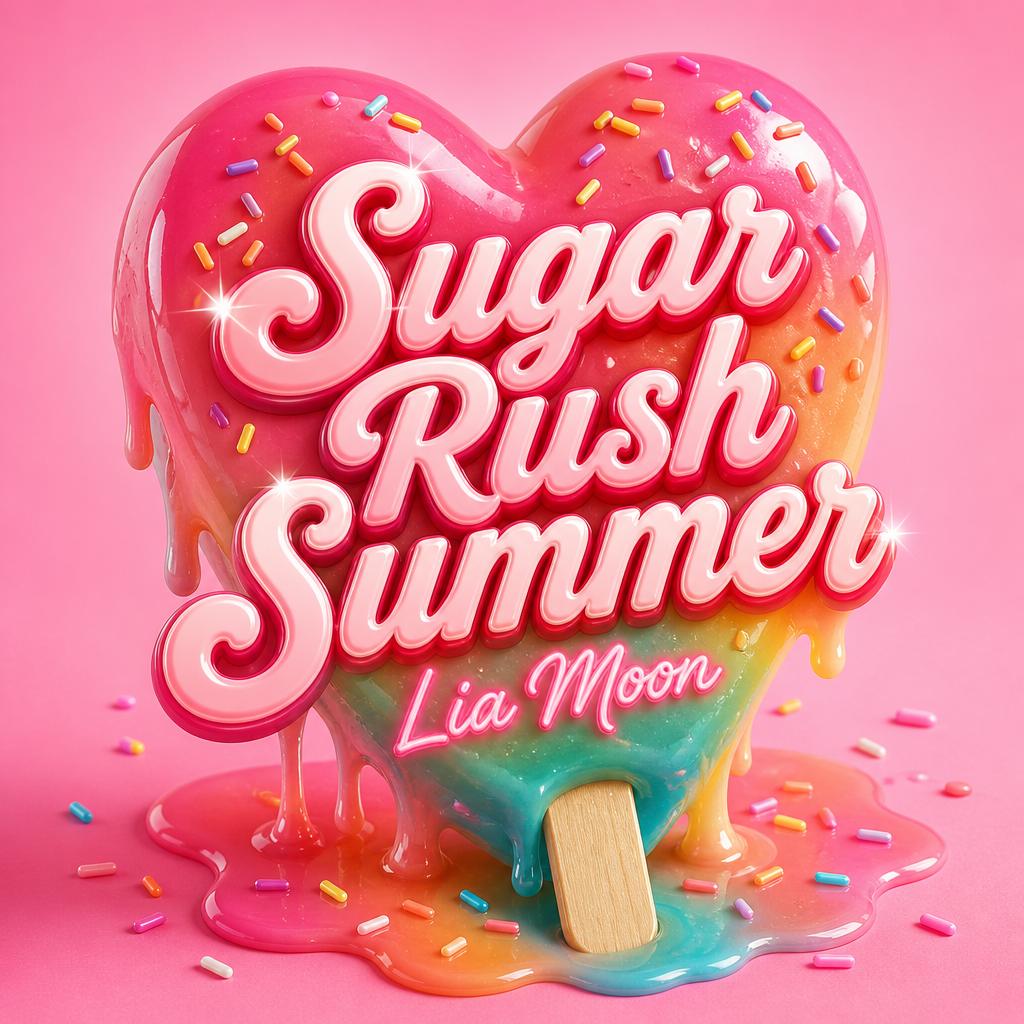
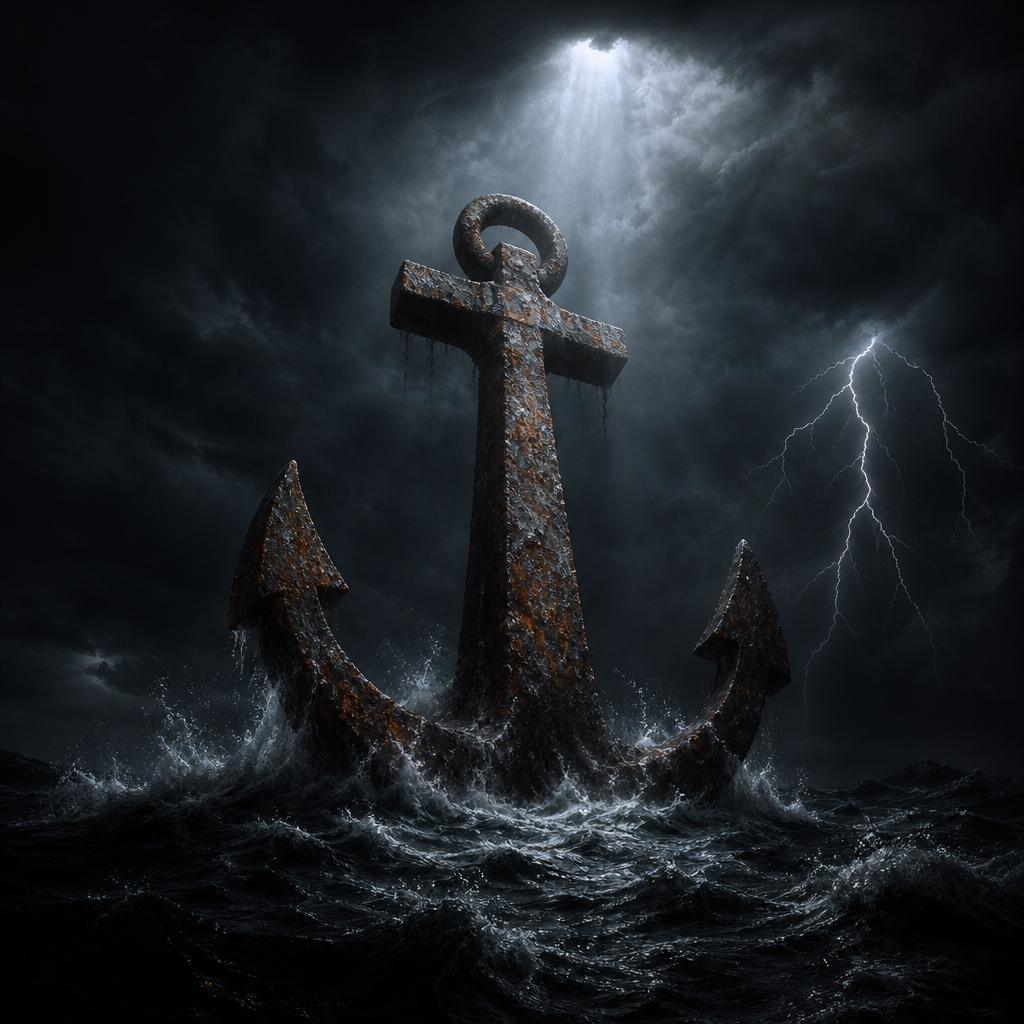
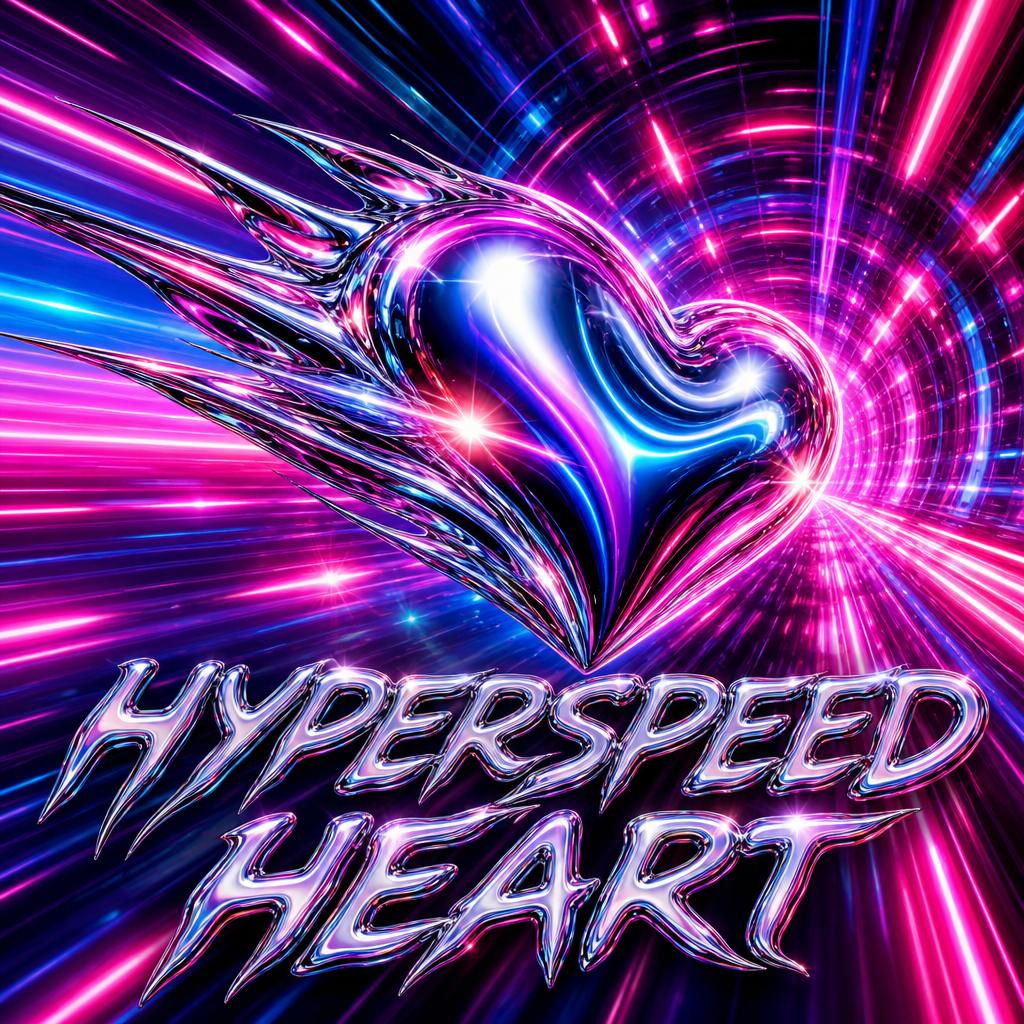
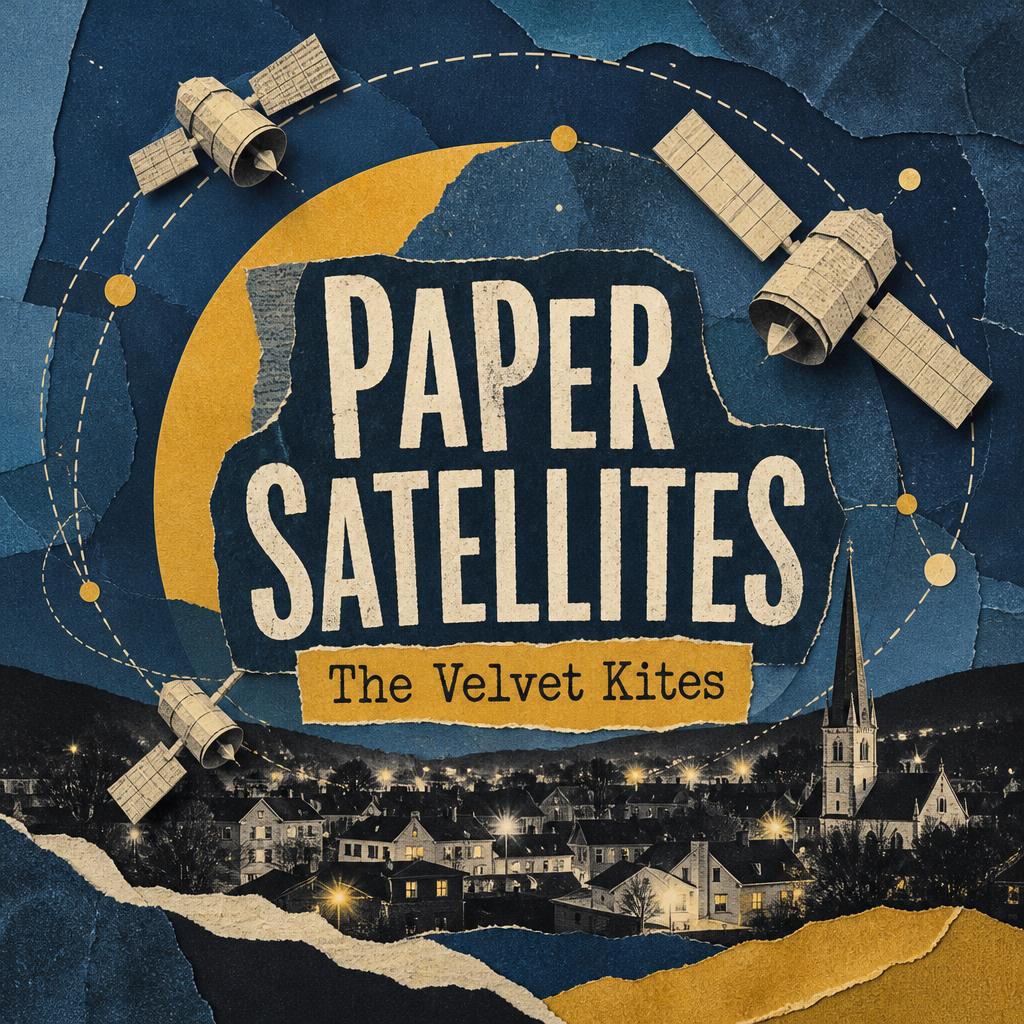
Your cover art is the first thing people see before they press play. On Spotify, Apple Music, YouTube, SoundCloud or a Suno profile, the artwork has about a second to tell a listener what kind of song this is and whether it’s worth a click. The Word.Studio Album Cover Generator turns a title and a few choices into original cover art for a single, EP, album or mixtape in under a minute.
To start, just fill out the form.
Each field shapes the result in a different way, so it helps to know what each one does.
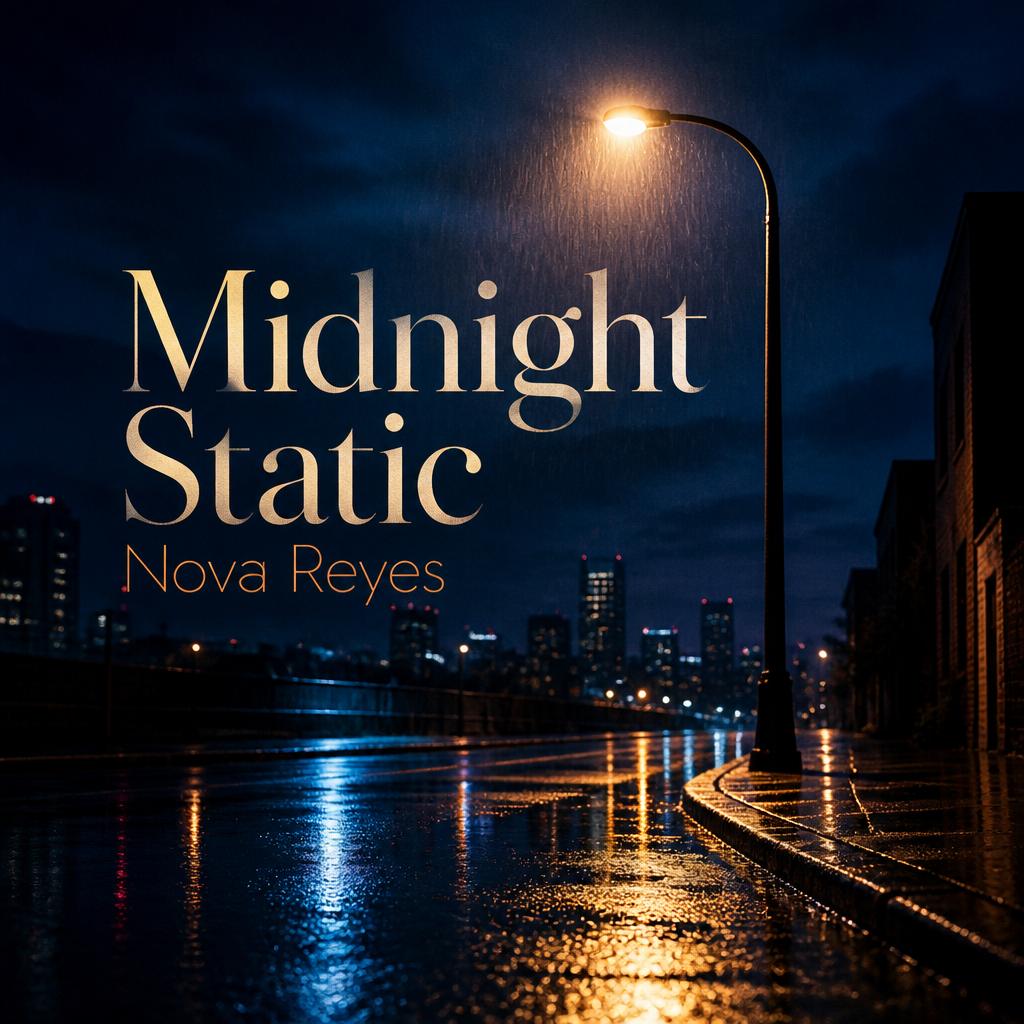
The Song or Album Title field is the name of your release. It is the only required field. Even if you choose a cover with no text, the title is used as inspiration for the artwork, so a title like Midnight Static will lead somewhere very different from Sunday Lemonade.
The Artist Name field is optional. Add it if you want your name on the cover. Leave it blank and no name will be added.
The Text on Cover option controls which words appear on the art. You can show the title and artist, just the title, just the artist, or no text at all. Many artists prefer a cover with no text, because it keeps the image clean and avoids spelling mistakes.
The Genre option sets the visual conventions people expect. A trap single, a worship song and a lo-fi beat tape all signal their sound through color, type and imagery. Choose Auto if you would rather let the tool decide from your title and idea.
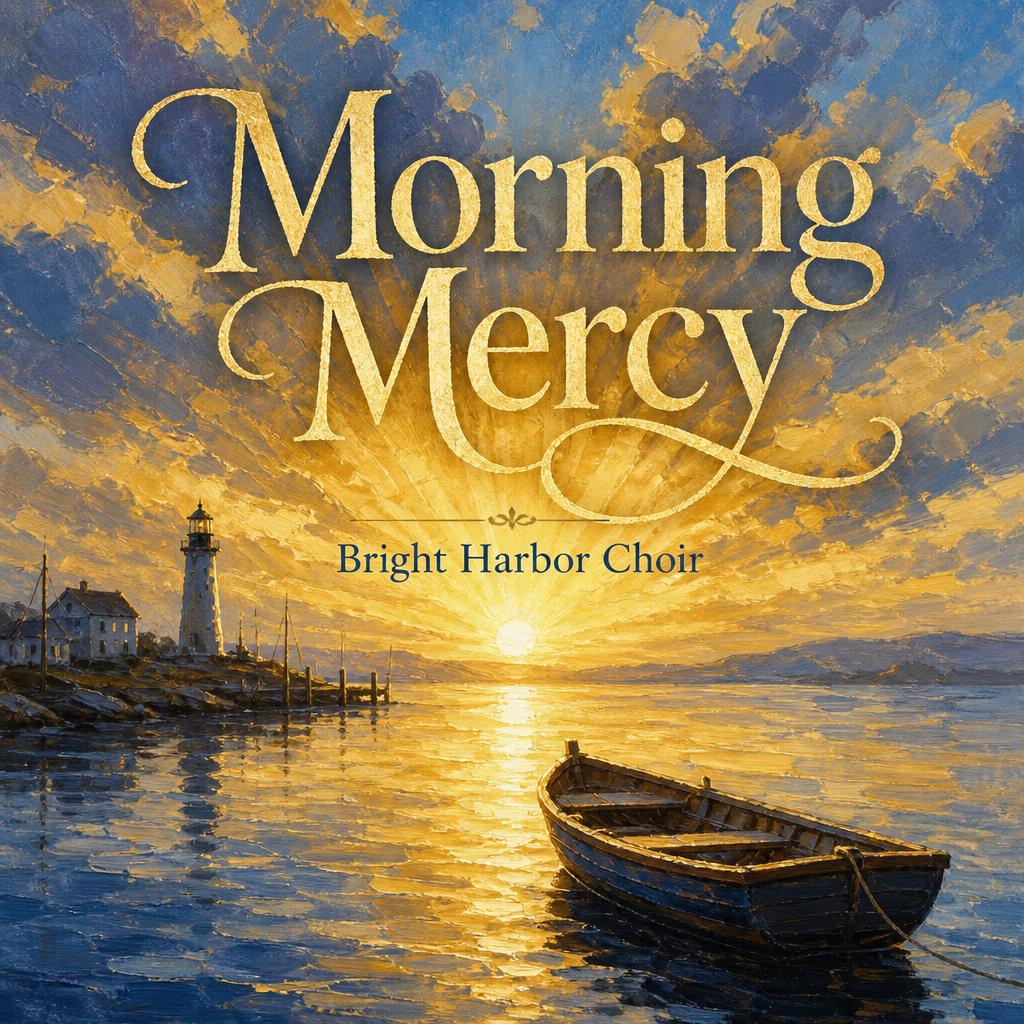
The Art Style option picks the overall look, from cinematic photos to oil paint, anime, collage or bold minimal type.
The Visual Idea field is where you describe what you want to see. This is the most powerful part of the form. Mention a subject, a setting, a mood, colors and one detail that makes it yours.
When you are ready, hit “Create Album Cover” and wait about 30-60 seconds. AI artwork changes from run to run, so it is normal to try a few versions before you find the one.
Cover Size and Where to Use It
Covers are made as a 1024×1024 pixel square. That size works well for Suno, YouTube, SoundCloud, BandLab, Instagram, TikTok and most places you share music.
If you release through a distributor such as DistroKid to Spotify or Apple Music, check their current artwork rules before you upload. Distributors usually recommend a larger 3000×3000 file, and they reject covers whose text doesn’t exactly match the release title and artist name you enter, or that include extra words such as website addresses or “new single” stickers. When in doubt, choose No text and add your type separately.
Choosing a Text Option
- Title and artist is the classic layout. The title is the most prominent text, with your name supporting it.
- Title only works when the song name is the hook, or when your audience already knows who you are.
- Artist only suits an album or EP that is named after you, or a cover built around your brand.
- No text (art only) gives you a clean image. It is the safest choice for streaming uploads, and it lets you add your own lettering later.
AI image tools can still misspell words now and then. Always check the text on your cover before you post it or release it.
Available Art Styles
- Auto lets the tool choose a style that suits your genre and title. It is a good place to start.
- Cinematic Photo looks like a still from a film, with dramatic real-world lighting. It suits hip-hop, R&B, pop and alternative releases.
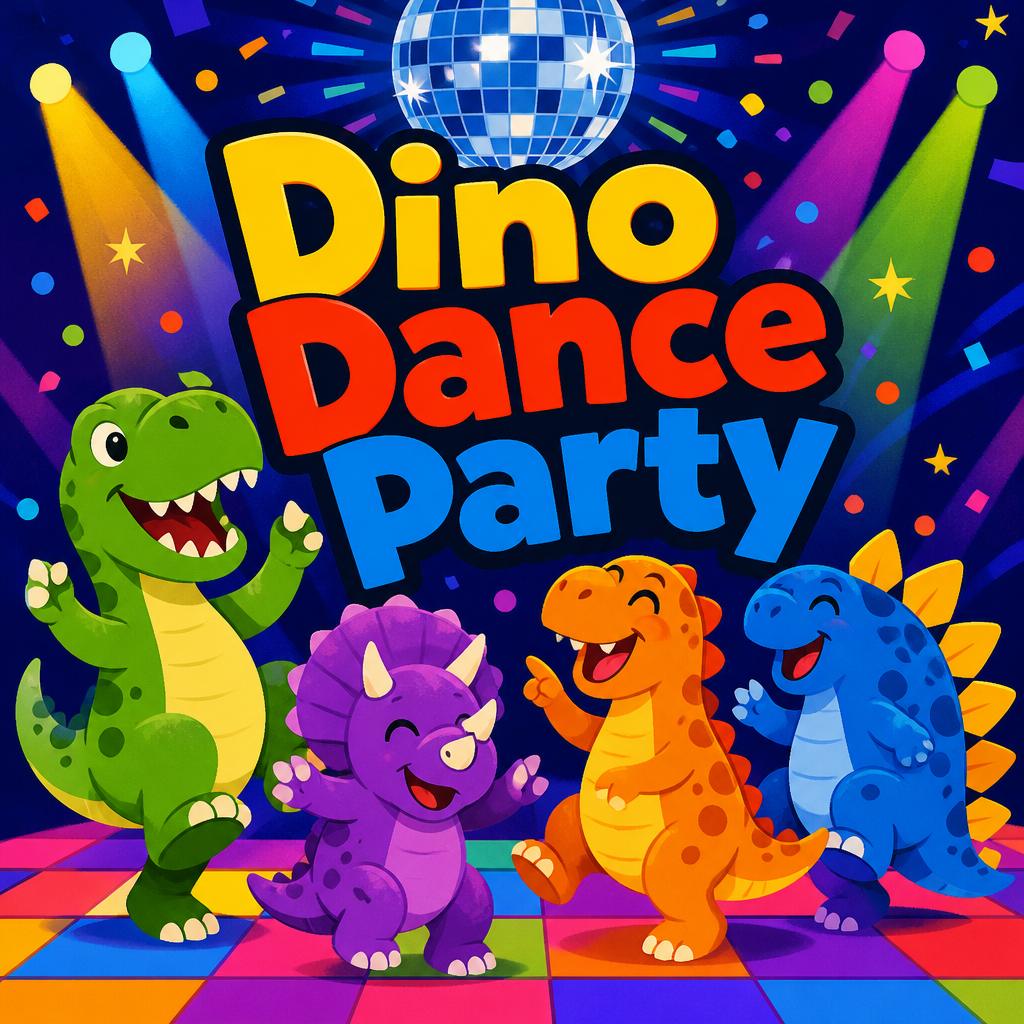
- Bold Illustration uses clean shapes and strong color. It reads well as a small thumbnail.
- Minimal Typography builds the cover around striking type and empty space. It works well for indie, electronic and singer-songwriter releases.
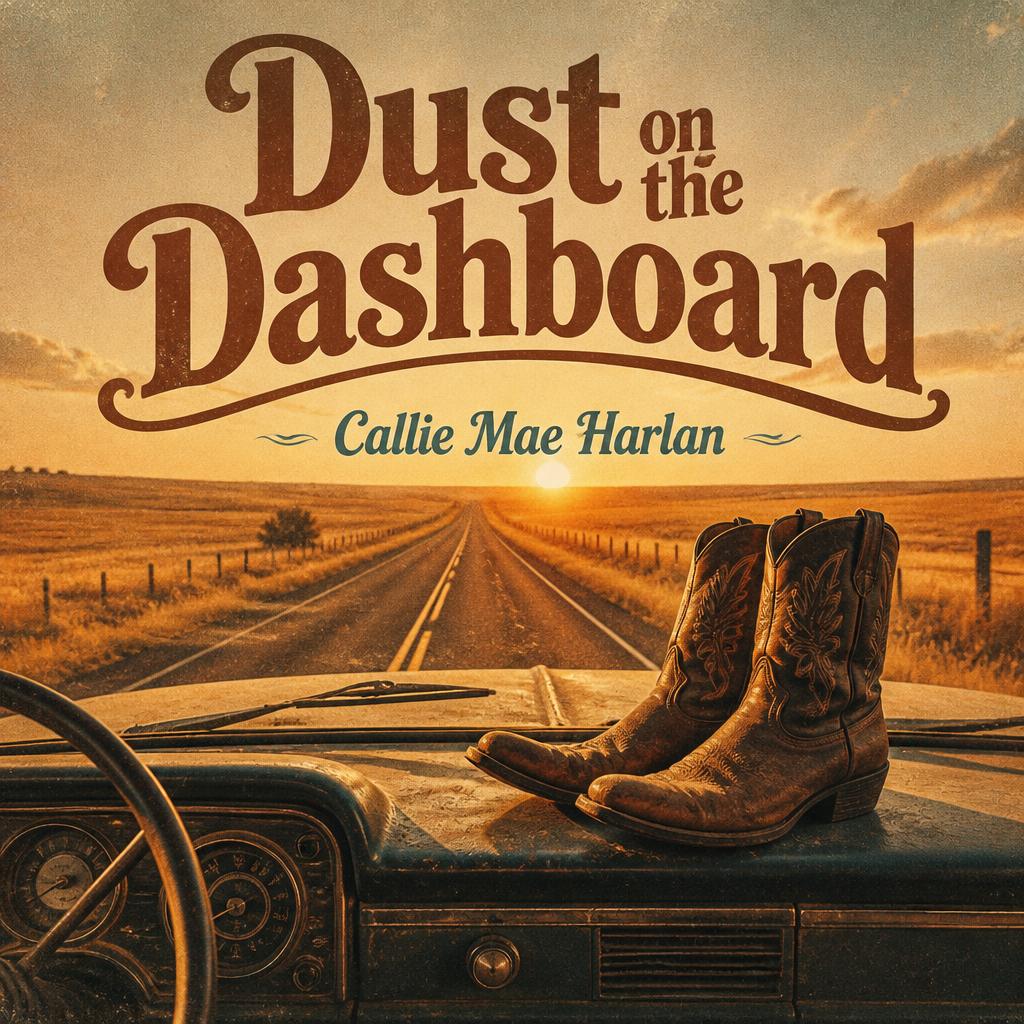
- Retro Film Grain has the warm, faded look of a 1970s photo, for soul, funk, folk, classic rock and anything nostalgic.
- Collage layers cut paper, photos and textures. Good for punk, experimental and mixtape energy.
- 3D Render is glossy and modern, popular for pop, hyperpop and electronic music.
- Oil Painting gives a classic, artful feel for folk, jazz, classical and concept albums.
- Dark & Moody uses deep shadows and a single light source, for trap, drill, metal and late-night R&B.
- Anime brings cel-shaded characters and vivid skies, a favorite for lo-fi, J-pop inspired and nerdcore tracks.
- Y2K Chrome has liquid metal type and iridescent gradients, for hyperpop, club and early-2000s throwbacks.
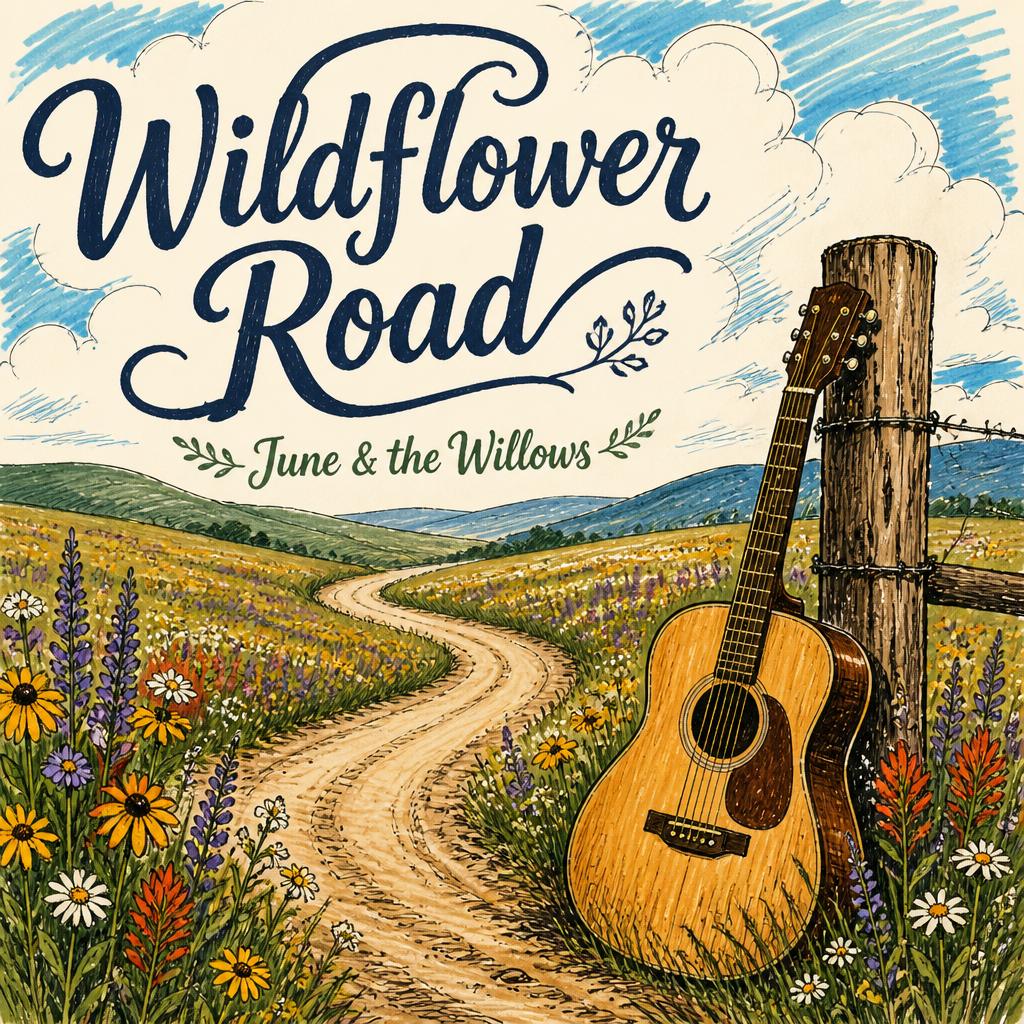
- Hand-Drawn looks like ink and marker in a sketchbook, for acoustic, emo and DIY releases.
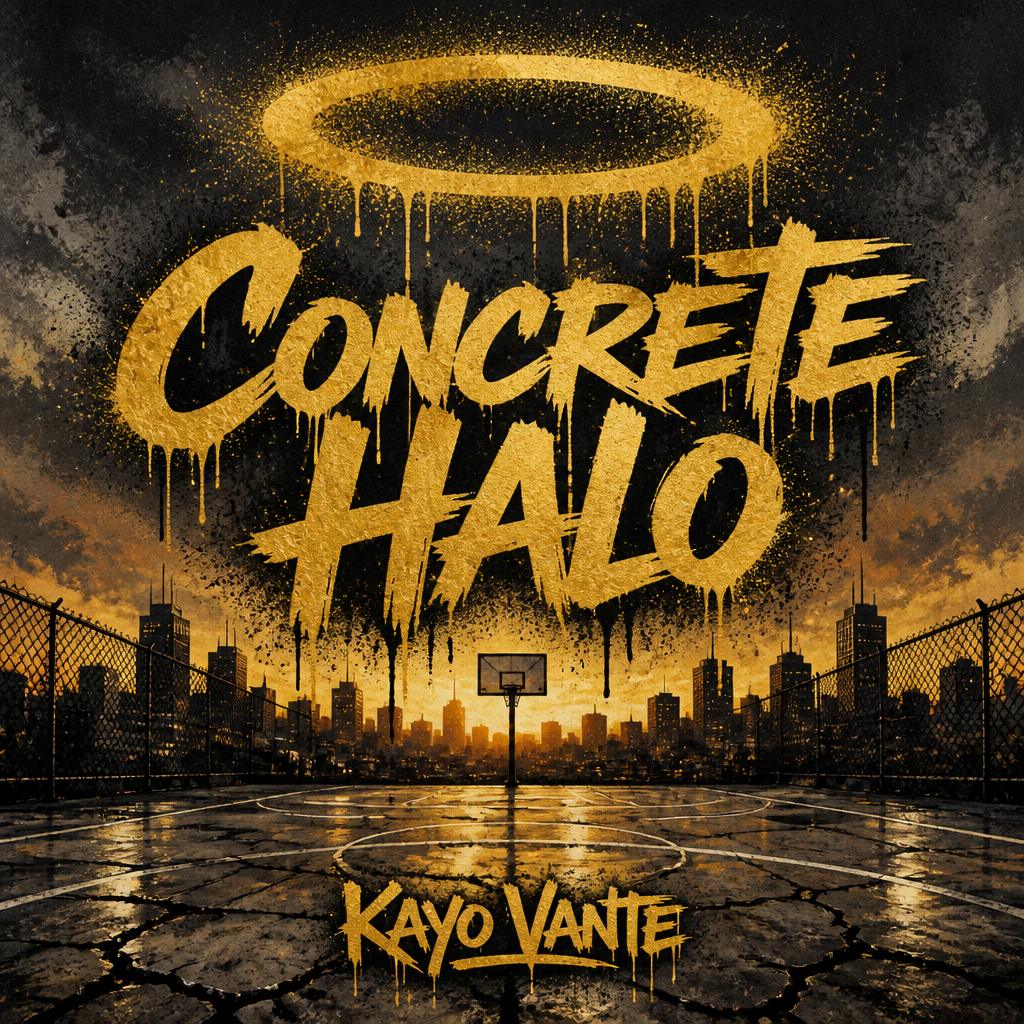
- Street Art uses spray paint drips and stencils, a natural fit for hip-hop and punk.
- Vaporwave mixes pastel pink and teal with retro computer graphics, for synthwave, vaporwave and chill beats.
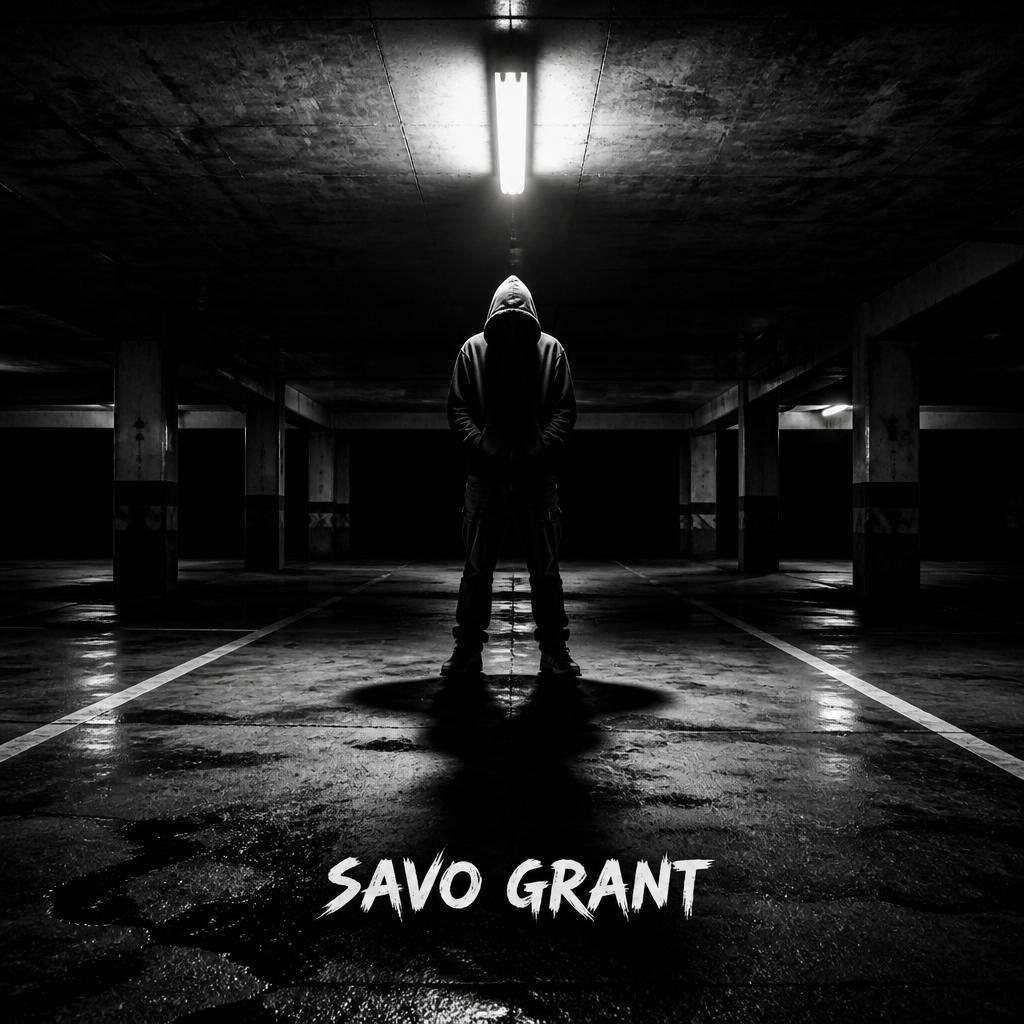
- Black & White is a high-contrast monochrome photo that feels timeless and serious.
How to Write a Better Visual Idea
Vague phrases like “make it cool” give the tool very little to work with. A useful formula is “subject + setting + mood + colors + one special detail.”
For a moody R&B single you could write:
“A lone streetlight on an empty city street after rain, reflections on the wet road, lonely and late-night mood, deep blue and amber colors, one red car tail light in the distance.”
For an upbeat summer pop song:
“A bright yellow inflatable pool float drifting on turquoise water, overhead view, joyful and carefree, candy pink and aqua palette, a pair of heart-shaped sunglasses on the float.”
Tips for a Cover That Stands Out
Most people will see your cover as a small square on a phone. Choose one strong focal point instead of many small details, use high contrast so it holds up at thumbnail size, and keep the title short so it stays readable. If you are releasing several songs, reuse the same art style and colors for each one so listeners recognize your music at a glance.