Background Texture Generator: Complete Usage Guide
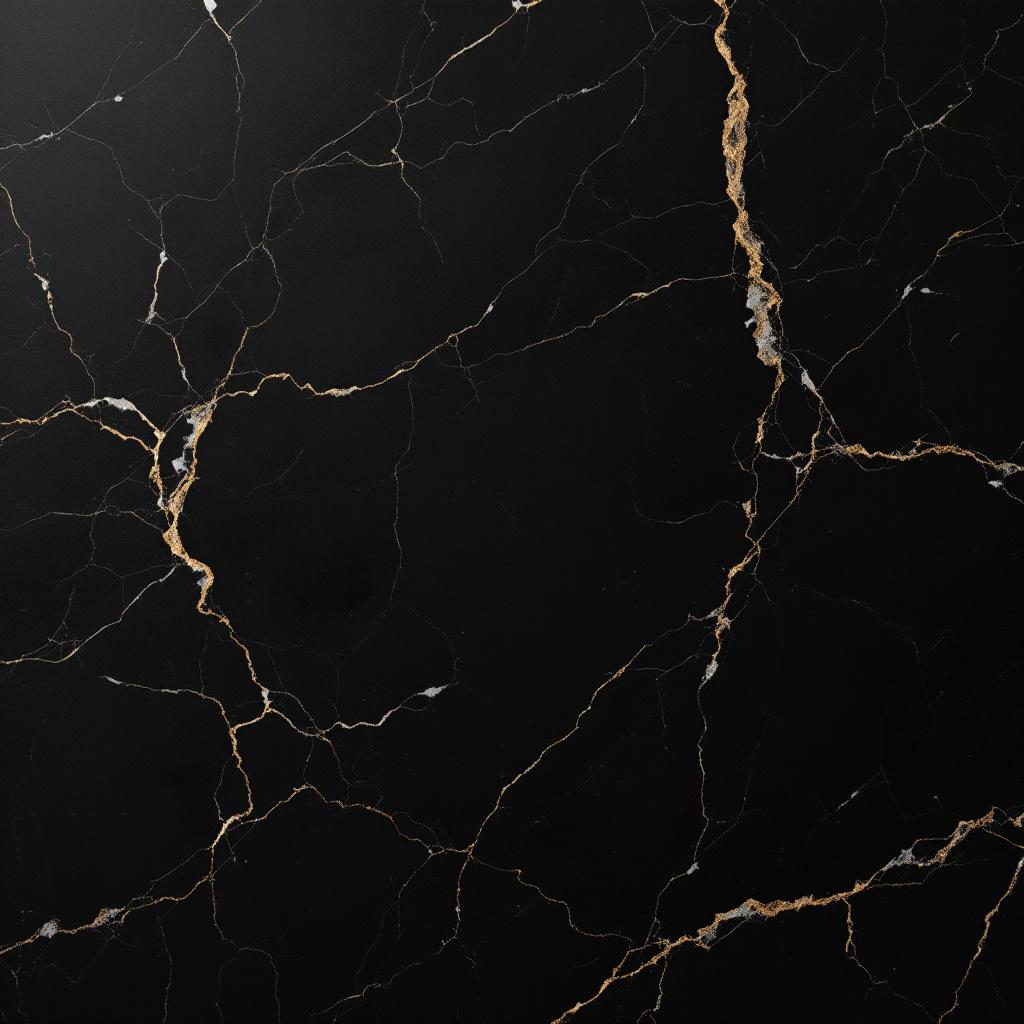
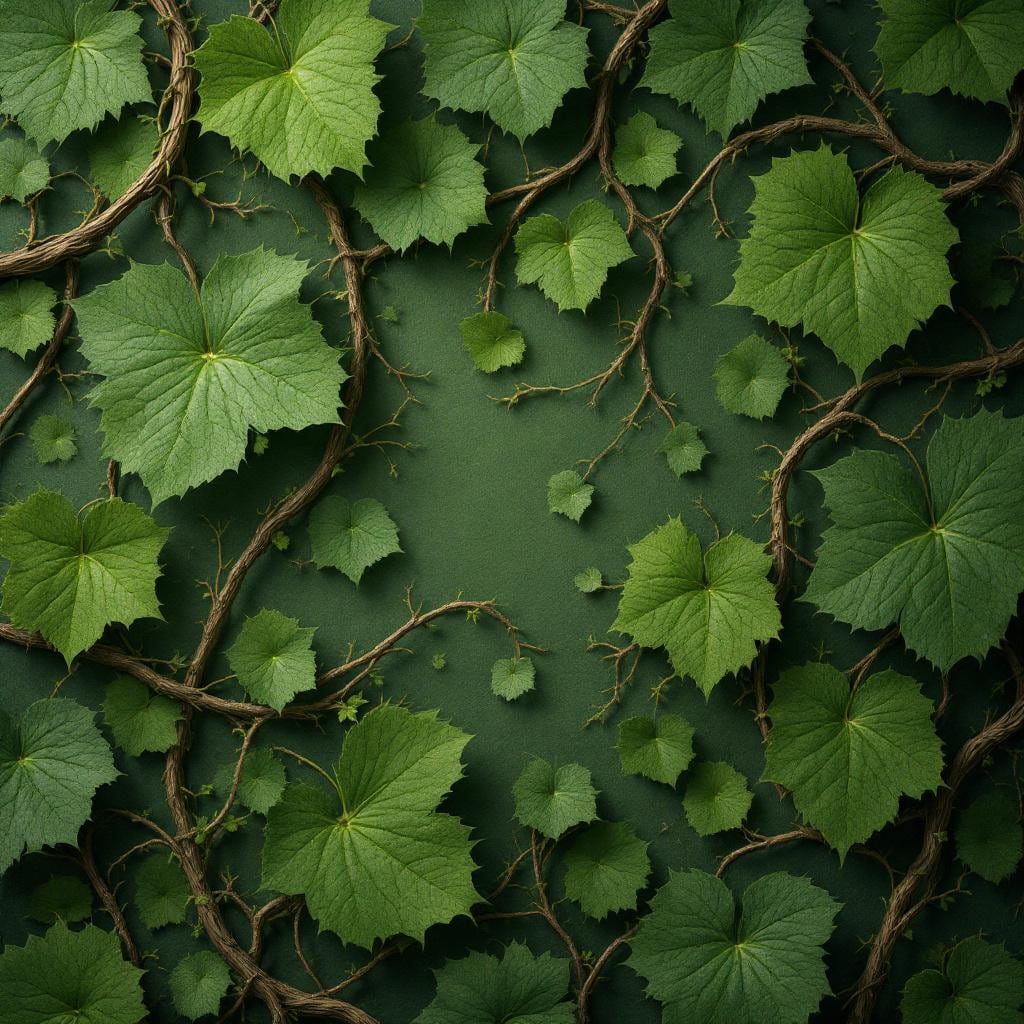
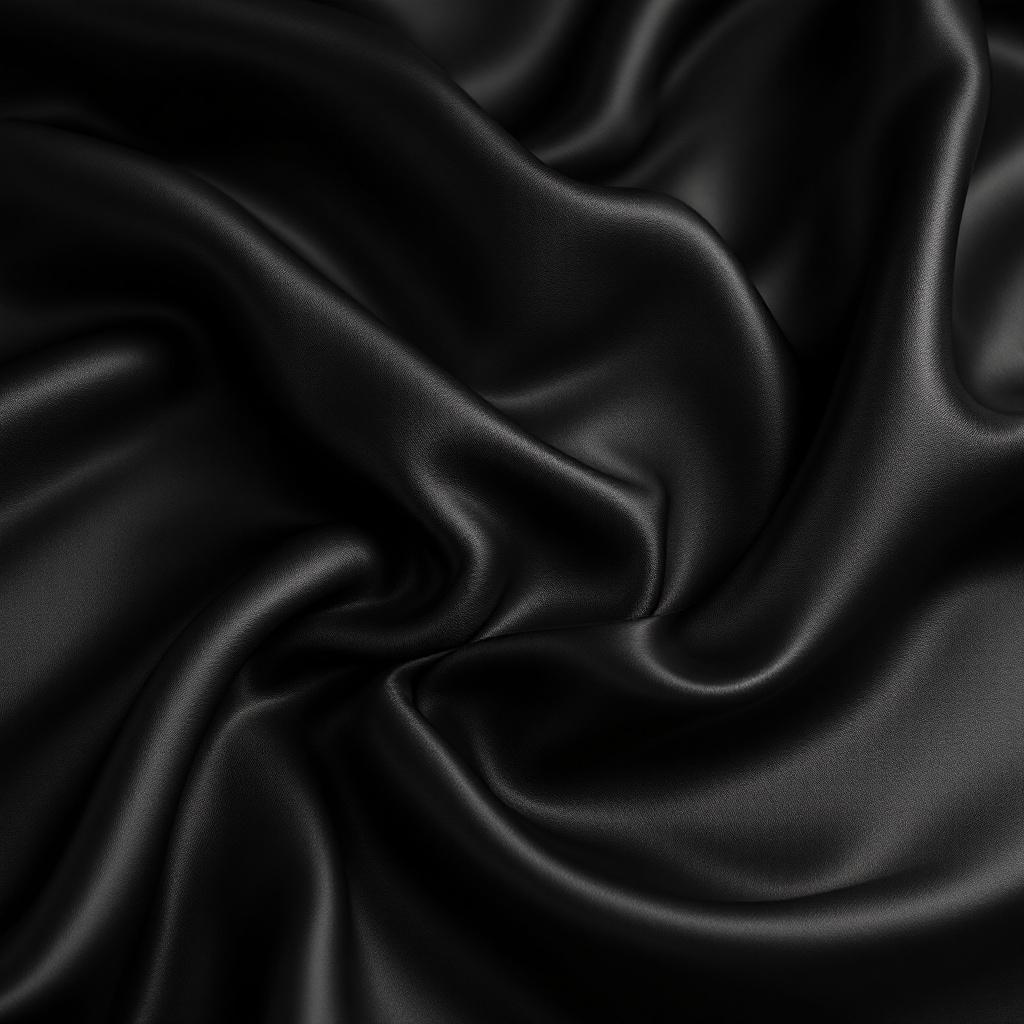
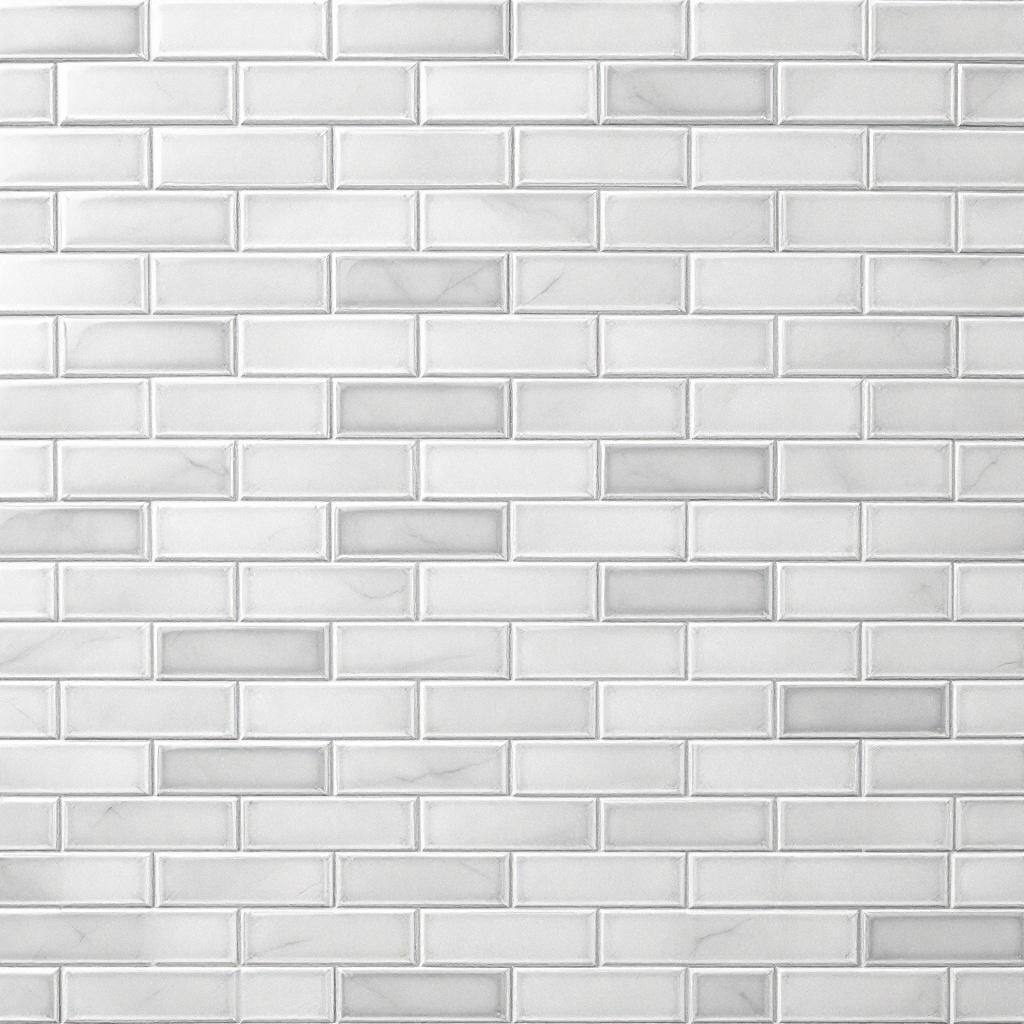
The Background Texture Generator is a visual creation tool designed to help you generate custom textures and backgrounds for graphic design, UI work, and 3D projects. By combining a descriptive text prompt with a selectable visual style, the tool allows you to quickly produce high-quality, reusable texture assets without manual design work.
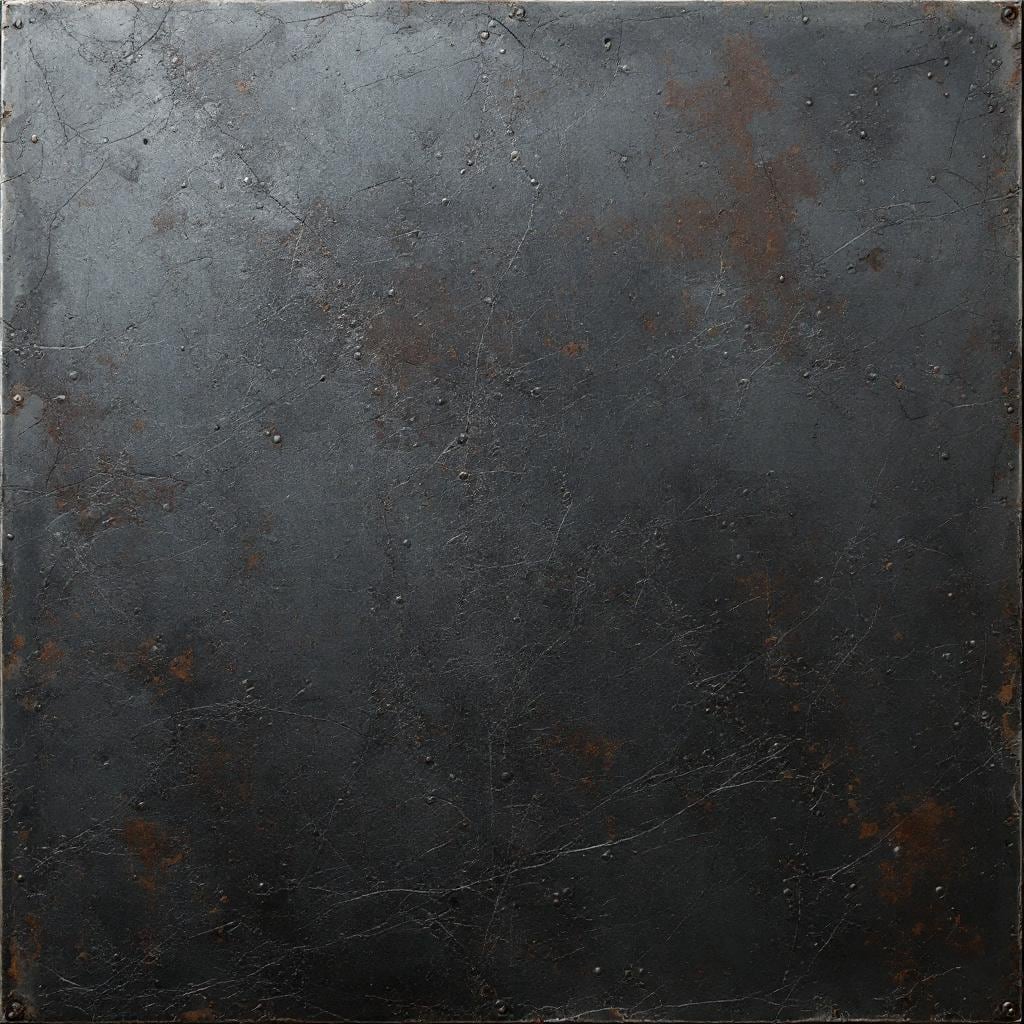
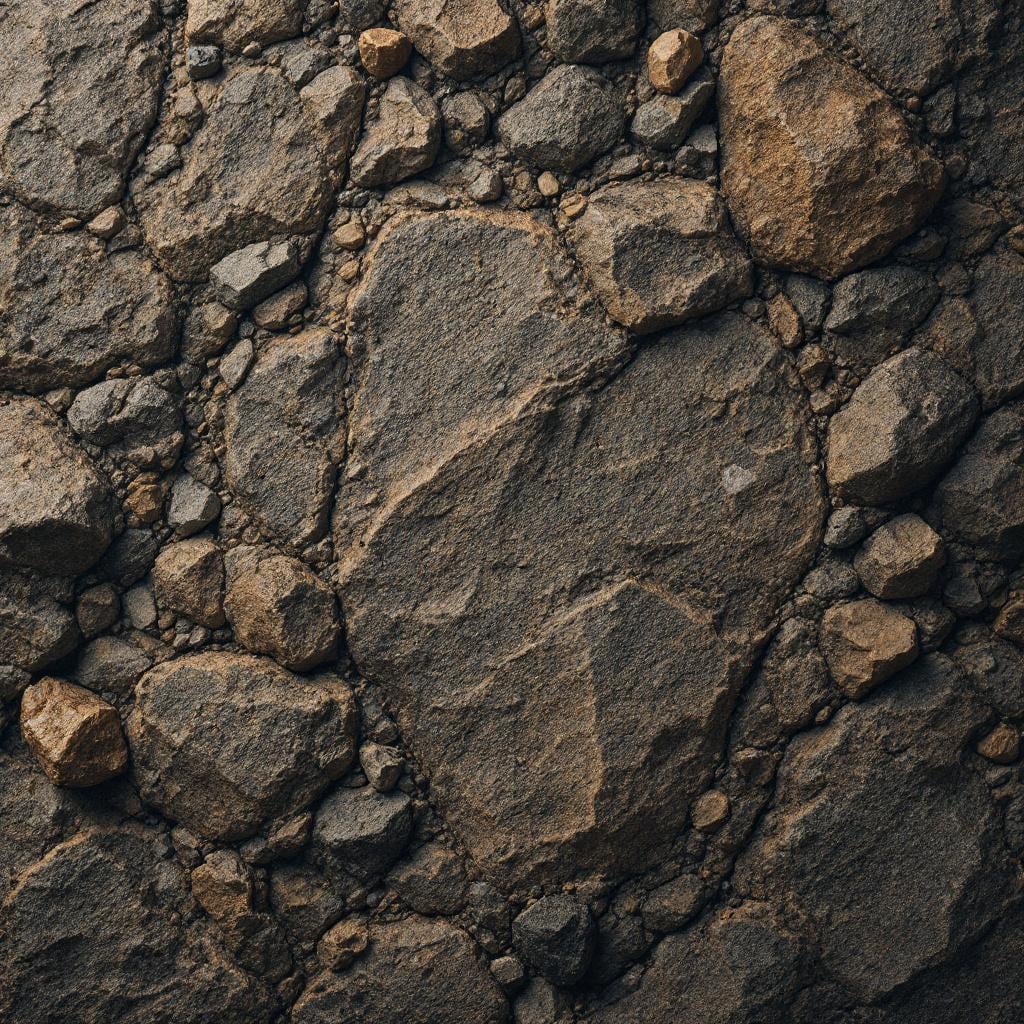
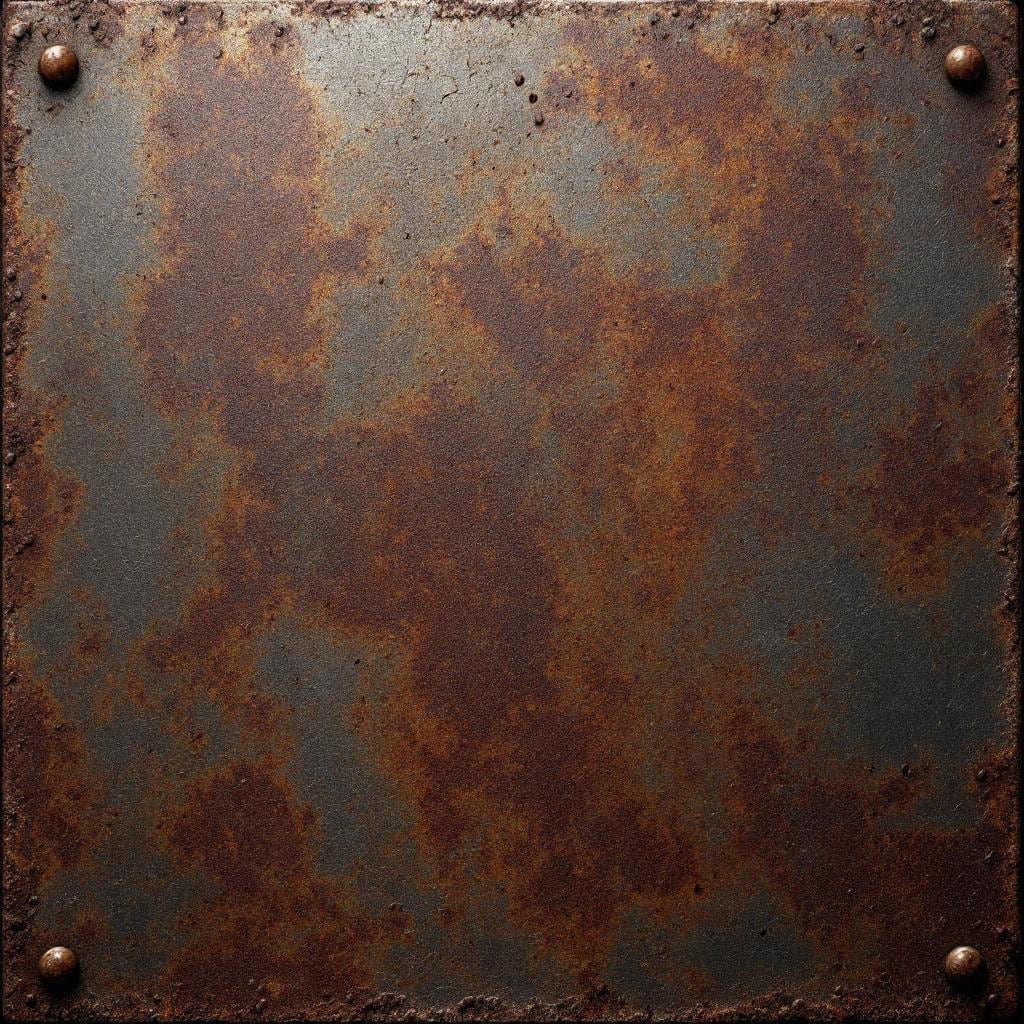
At the top of the tool, you’ll see the title and a short description explaining its purpose: generating textures and backgrounds for creative projects. The main working area is centered on a compact form that guides you through the generation process, while a gallery of example textures is displayed below to inspire ideas and demonstrate possible outcomes.
Describing Your Texture
The first and most important field is “Describe your texture.” This is a free-text input where you explain what kind of surface or background you want to generate. The placeholder example, “Weathered dark red brick wall with ivy growing on the surface,” shows the ideal level of detail.
For best results, describe:
- The material (wood, metal, fabric, stone, marble, etc.)
- The condition (new, worn, cracked, rusty, polished)
- Color and tone
- Any distinctive patterns or surface details
Choosing a Style
Below the description field is the Style dropdown. This lets you control the overall visual treatment of the texture. Depending on your project, different styles may be better suited for:
- UI and web backgrounds
- Abstract or decorative designs
- Concept art or stylized visuals
Selecting the right style ensures the generated texture matches the aesthetic of your final project.
Generating the Texture
Once your description is written and a style is selected, click “Generate Texture Image.” The tool will process your input and create a custom texture based on your specifications. If the button appears inactive, make sure all required fields are filled in properly.
You can repeat this process with small variations in your description to explore multiple texture options quickly.
Make Any Texture or Background
Write your descriptions as if you were explaining the texture to another designer, focusing on visual and tactile details. If you’re working on 3D projects, think about how the surface should feel and reflect light. For graphic design or UI backgrounds, consider how busy or subtle the texture should be to avoid distracting from foreground content.
The Background Texture Generator is especially useful when you need unique assets quickly, want to avoid stock imagery, or need textures tailored to a specific theme or project. It’s well-suited for designers, developers, and artists who want control without complex texture-authoring workflows.